Your account Step 24 of 30
Account settings
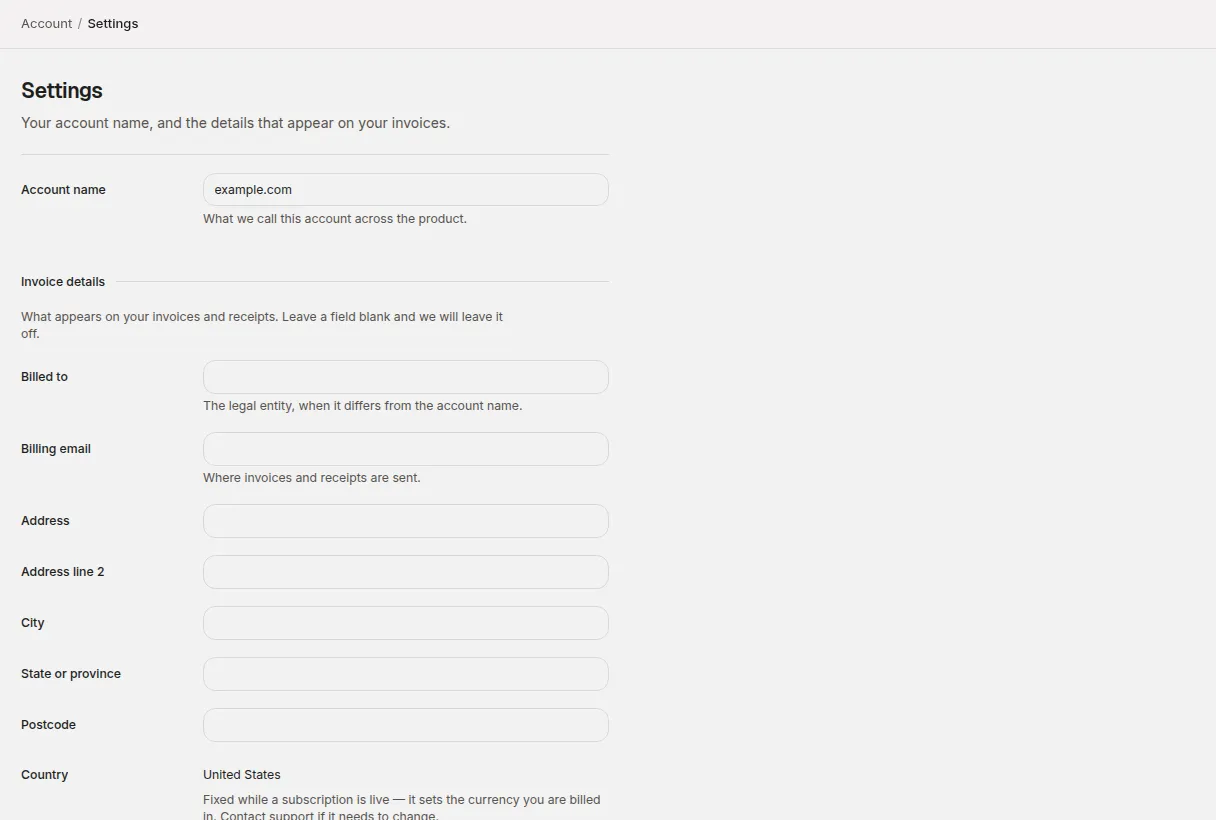
Account → Settings holds your account name and invoice details, and links to single sign-on, alert channels, hosted records and scheduled reports.
Updated
Account → Settings holds two things: your account’s name and the details that appear on your invoices, and links to the account-wide features that don’t have their own place in the sidebar.
Who can change what
- Admin and Owner members with access to the whole account can edit the form.
- Everyone else sees the same details read-only, with a note that changing them needs the administrator role.
- An admin whose access covers particular clients sees the form, but saving it is refused: these details belong to the whole account, and whoever manages the account handles them.
Account name
Account name is what the account is called across DMARCLoop — in the sidebar, the account switcher, invitation emails and the page headings. It starts out named after the person who signed up; change it to your organisation’s name here.
Invoice details
What appears on your invoices and receipts. Leave a field blank and it’s left off.
| Field | What it’s for |
|---|---|
| Billed to | The legal entity, when it differs from the account name. |
| Billing email | Where invoices and receipts are sent. |
| Address, Address line 2, City, State or province, Postcode | The address on the invoice. |
| Country | Sets the currency and the tax treatment. |
| ABN or tax ID | For your own records. It doesn’t remove GST on a domestic supply. |
Choose Save. If you have a paid subscription, the page says your invoice details are being updated with our payment provider; the next invoice carries them.
The billing country
Country can be changed freely until you subscribe to a paid plan. Once a subscription is live it’s fixed — it decides the currency, and Stripe can’t change a subscription’s currency — and the page shows it as text with a note to contact support if it needs to change. See Manage billing and invoices.
If you chose Skip for now when the dashboard asked where you’re based (see Choose a plan), this is where to set it.
Everything else on the page
Below the form, Settings links to:
| Section | Link | What it’s for |
|---|---|---|
| Single sign-on | Set it up | Sign in through your own identity provider. Below. |
| Alerts | Set up channels | Send alerts to Slack, Microsoft Teams or a webhook. See Notifications and alerts. |
| Emails | See the log | The same page as Account → Emails. See The email log. |
| Notifications | Choose what you receive | The same page as Account → Notifications. |
| Directory provisioning | Manage SCIM tokens | Add and remove members from your directory. Below. |
| Hosted records | Manage hosted domains | Domains whose DMARC, DKIM and SPF are published by DMARCLoop. See Hosted records. |
| Scheduled reports | Set up a schedule | Email a PDF or CSV of what your domains are doing, weekly or monthly, to people who don’t log in. See Saved and scheduled reports. |
Alert channels, hosted records, scheduled reports, single sign-on and directory provisioning are each on plans that include them; the pricing page lists what each plan includes. On a plan without one, its page says Not included in your plan.
Single sign-on and directory provisioning
Both decide who can reach the account, so both need the Owner role and access to the whole account. Other members who open them are told an owner has to set them up.
Single sign-on
Single sign-on connects your identity provider (Entra, Okta, Google and others) so that removing someone from your directory removes their access to DMARCLoop too. It works over SAML 2.0 or OpenID Connect. Setup runs in steps, and nothing changes how anyone signs in until the last one:
- Which email domains it covers — chosen from domains you’ve verified in DMARCLoop. A domain you’ve added but not verified can’t be claimed.
- Send it to your provider — the page gives your identity team the values they need, and takes the details they give you back.
- Turn it on — activate it and test signing in through your provider first. Then, if you want, turn on Require single sign-on for those domains; until you do, people can still use a DMARCLoop password.
The Remove section turns it off again. Nobody loses access while it’s off.
Directory provisioning (SCIM)
Directory provisioning gives your identity provider an endpoint and a token, so people added to your directory get access here and people removed from it lose it. The page lists what a directory can and can’t do:
- Everyone it creates is Read only. Someone in the account raises their role afterwards, and a later sync won’t undo it.
- It can’t remove an owner or an admin.
- It can’t see any of your DMARC data.
- If an admin removes a member, the next sync won’t put them back.
- Tokens last at most one year. Issue a replacement and update your identity provider before the current one expires; the page marks tokens that are expiring soon.
Things that aren’t here
- Your own name, email and password aren’t on this page. To change your password, use Forgot password? on the sign-in page.
- Closing the account. There’s no button for it. To cancel a paid plan, see Cancelling — the account drops to Free rather than closing. To have an account deleted, contact us.
- People and roles are on Account → People.
Stuck? Reply to any email DMARCLoop sends, or contact us — a person reads it.