Getting started Step 3 of 30
Set up two-factor authentication
Protect your DMARCLoop sign-in with a code from an authenticator app, save your backup codes, and know what to do if you lose your phone.
Updated
Your DMARCLoop account can change your domains’ DNS advice, see who sends mail as your organisation and, for admins, add and remove people. It’s worth a second step at sign-in. Two-factor authentication (sometimes called MFA) adds one: after your password, a 6-digit code from an authenticator app on your phone.
It’s optional, takes about two minutes, and only affects you — each person in the account sets up their own.
Which sign-in it protects
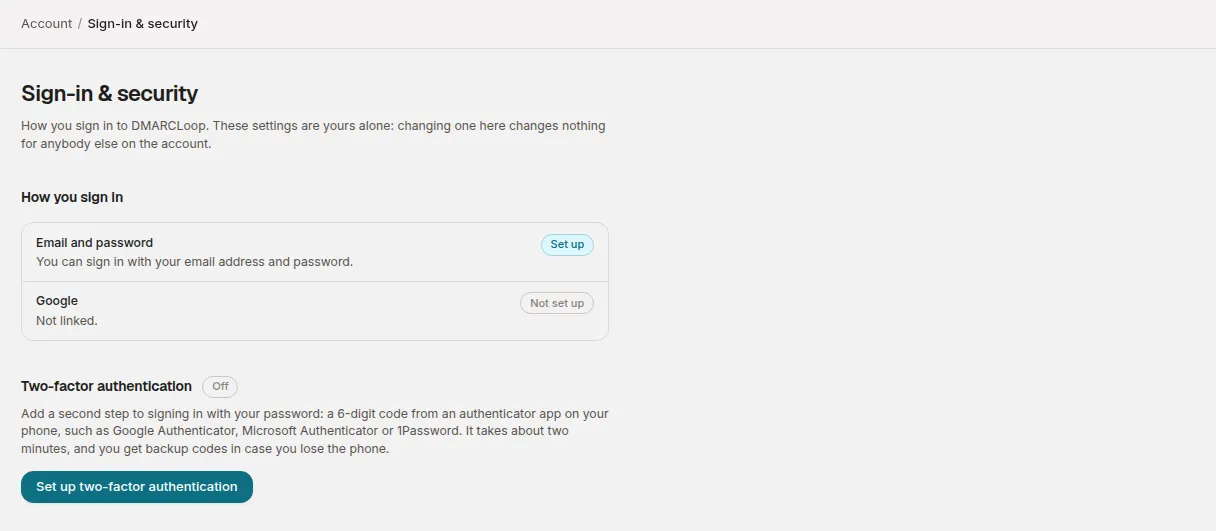
You can sign in to DMARCLoop in two ways:
- Email and password. Two-factor authentication protects this. Once it’s on, every sign-in with your password asks for a code.
- Google. Signing in with Google is protected by your Google account’s own sign-in, including its 2-Step Verification. DMARCLoop doesn’t ask for a code as well, so if you only ever use Google, turn on 2-Step Verification in your Google account instead — there’s nothing to set up here.
Account → Sign-in & security shows which of these you have.
Before you start
You need an authenticator app on your phone — for example Google Authenticator, Microsoft Authenticator or 1Password. Any app that supports time-based codes (TOTP) works.
Turn it on
- In the app, go to Account → Sign-in & security and choose Set up two-factor authentication.
- Enter Your password and choose Continue.
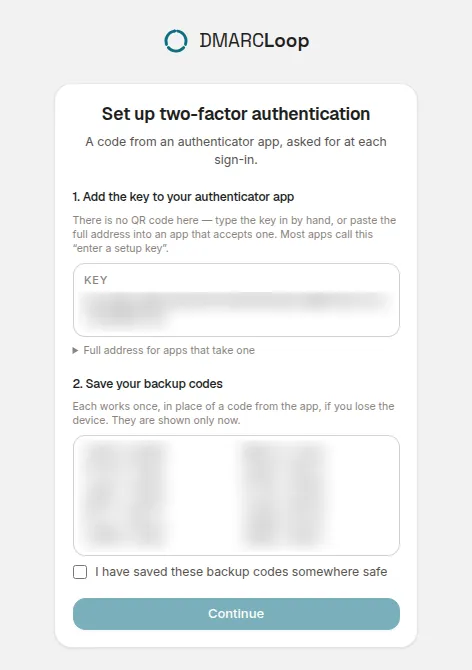
- Add the key to your authenticator app. In the app, choose to add an account by entering a setup key, and type the Key shown. (Some apps accept the full address instead; it’s under Full address for apps that take one.)
- Save your backup codes. Each one works once, in place of a code from the app, if you lose your phone. They’re shown only now, so store them somewhere safe — a password manager is ideal. Tick I have saved these backup codes somewhere safe and choose Continue.
- Confirm. Enter the 6-digit code your app shows now and choose Confirm & continue.
You’re returned to Sign-in & security, which now shows two-factor authentication as On.
Signing in from now on
After your email and password, DMARCLoop asks for the Verification code from your app. Enter it and choose Verify & continue.
If you don’t have your phone, choose Use a backup code and enter one of your saved codes instead. Each backup code works once.
New backup codes, or turning it off
Both are on Account → Sign-in & security, and both ask for your password:
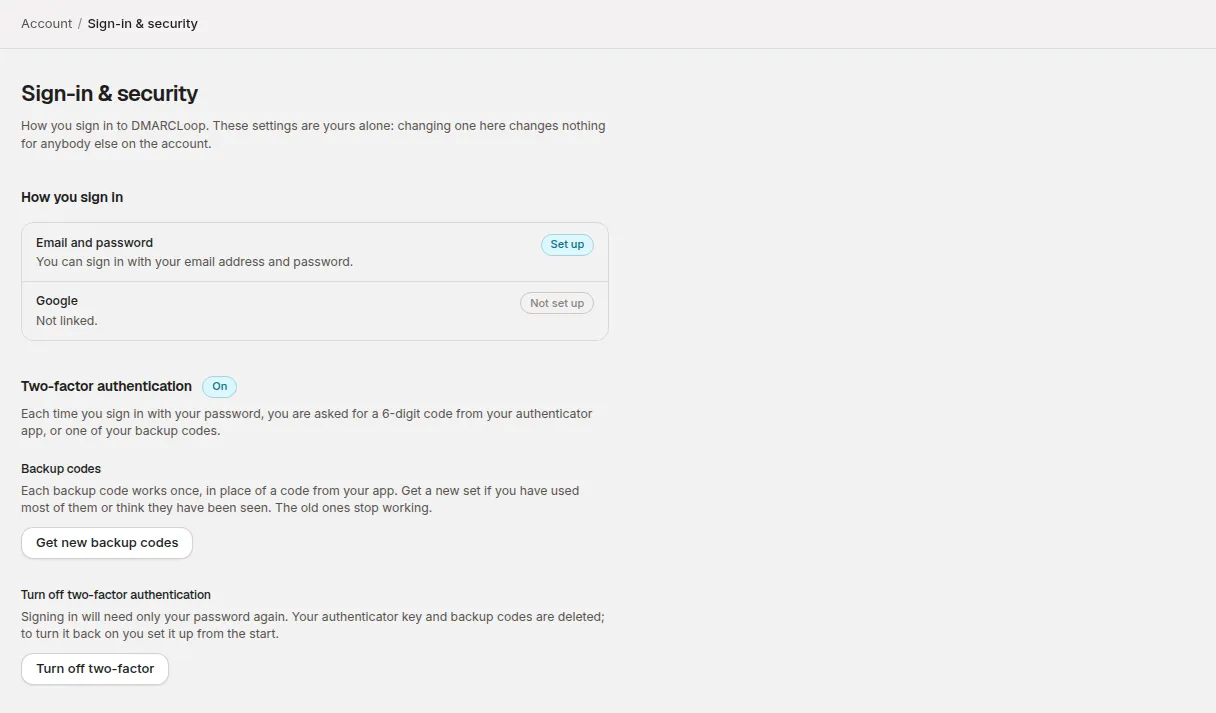
- Get new backup codes replaces all of your backup codes with a fresh set, shown once. Do this if you’ve used most of them or think they’ve been seen; the old ones stop working.
- Turn off two-factor goes back to signing in with your password alone. Your authenticator key and backup codes are deleted; to turn it on again you set it up from the start.
If you’ve lost your phone
Sign in with one of your backup codes, then go to Sign-in & security and either set up two-factor authentication again on your new phone (turn it off, then on) or get new backup codes.
If you’ve lost both your phone and your backup codes, contact us from the email address you sign in with. We check that the request really comes from you before doing anything — a lost phone is also the story someone trying to take over your login would tell — and then remove two-factor authentication from your login and sign you out on every device. Your password, and any other way you sign in, stay as they were.
Once it’s removed:
- You’re emailed to say so, with the reason we recorded. The email never contains a sign-in link. If you ever receive it without having asked, write to us straight away and change your password.
- It’s recorded in Account → Access log of every account you belong to, so the people who manage those accounts can see it was done and why (see The access log).
- Signing in no longer asks for a code. Set two-factor authentication up again from Sign-in & security as soon as you’re in.
For account owners
Two-factor authentication is set by each person for themselves; nobody in your account can turn it on or off for someone else. Only we can remove it, when the person who lost their phone asks us to, and every time we do it appears in your access log. If your organisation signs in through its own identity provider (single sign-on), that provider’s sign-in rules — including its MFA — apply instead. See Account settings.
Stuck? Reply to any email DMARCLoop sends, or contact us — a person reads it.