For MSPs Step 28 of 30
Reports for your clients
Schedule a monthly or weekly DMARC report for each client with your logo on it, what your customer receives, and which names they see in DNS.
Updated
The report most MSPs send their customers is a scheduled one: a PDF in the customer’s inbox each month, covering their domains only, with your logo at the top. Saved and scheduled reports covers schedules in general; this article covers the parts that are specific to running them for clients.
Scheduled reports are not included on every plan; the pricing page lists what each includes. On a plan without them, the page says Not included in your plan.
One schedule per client
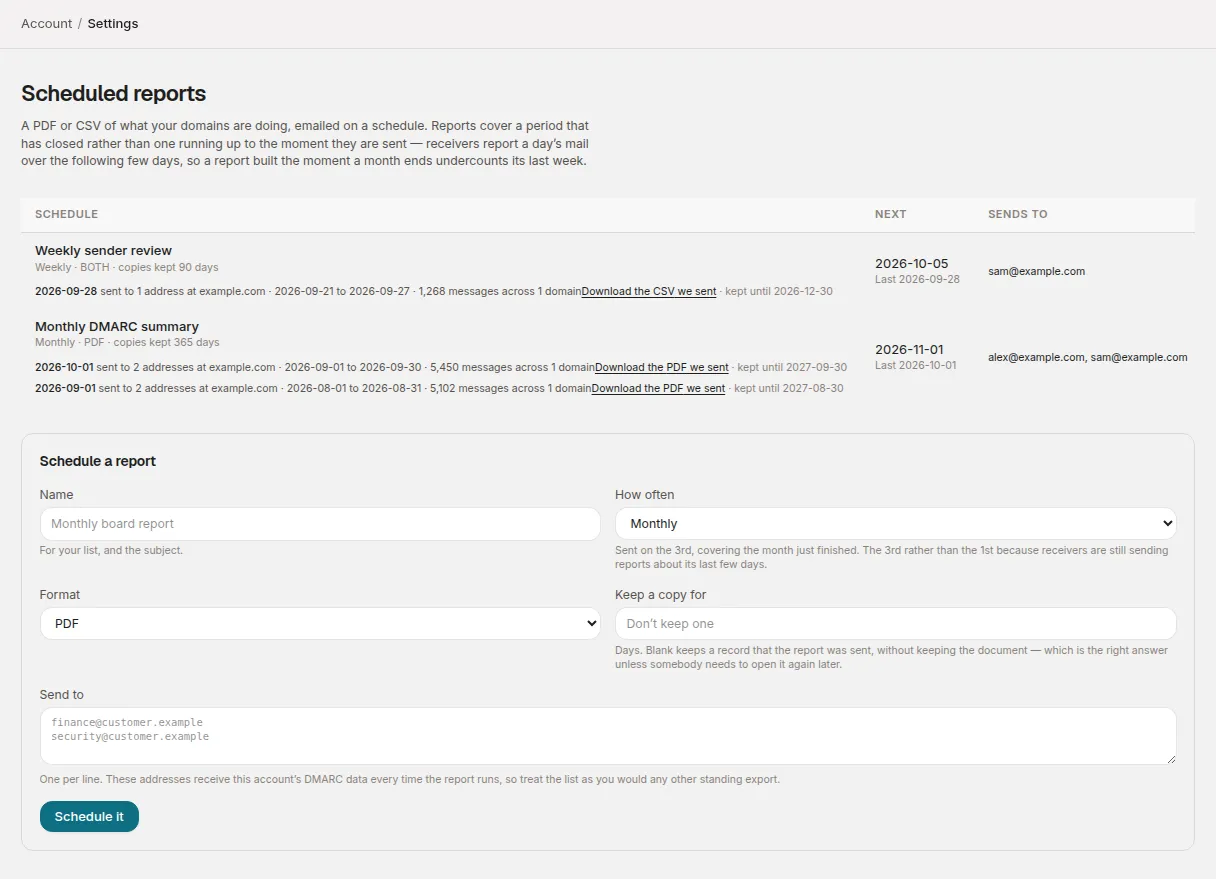
Schedules live under Account → Settings → Scheduled reports (choose Set up a schedule). On an MSP account, the form has a Covering menu:
| Covering | What the report contains | Who it’s for |
|---|---|---|
| A client | That client’s domains only, headed with the client’s name | That customer |
| Every client | Every domain in the account in one report, headed with your organisation’s name | Your own team |
To report to each customer, create one schedule per client. Every client puts all of your customers’ figures in a single document, so never send it outside your own organisation.
For each schedule, choose:
- Name: for your own list of schedules, and the start of the email’s subject. Your customer sees it, so name it as you’d want them to read it.
- How often: Monthly sends on the 3rd, covering the month just finished. Weekly sends on Wednesday, covering the week that closed on Monday. The gap is deliberate: receivers report a day’s mail over the following few days, so a report built the moment the period ends would undercount its last days.
- Format: PDF, CSV or Both. Customers usually want the PDF.
- Keep a copy for: a number of days, or blank. With a copy kept, you can download exactly what a customer was sent if they ask about it later.
- Send to: the customer’s addresses, one per line.
Then choose Schedule it. Scheduling needs the Analyst role or above. A member whose access covers particular clients can schedule reports for those clients, but not for Every client.
Your logo
The Your logo section on the same page puts your logo at the top of every scheduled PDF, for every client. Upload a PNG or JPEG under 2 MB with Upload logo; Replace logo and Remove it do what they say. SVG isn’t accepted, because an SVG can carry scripts and the file goes into documents sent on your behalf.
Changing the logo needs the Admin role and access to every client. With no logo, reports go out unbranded.
The logo appears on the PDF only. The dashboard, the login page and the CSV stay as they are.
What your customer receives
An email with the report attached:
- Subject: the schedule’s name, the client’s name and the period — for a schedule named Monthly DMARC report, Monthly DMARC report — Example Holdings — September 2026. Reusing one name across clients is fine; the client’s name keeps the subjects apart.
- Body: a few lines giving the period and the share of reported messages that passed DMARC, and a note that the period was left to close before the report was built. It ends This report was scheduled from DMARCLoop., and it’s sent from DMARCLoop’s own address, not yours.
- The PDF: your logo, the client’s name alongside your organisation’s name, the period, a summary, a table of each domain’s messages and pass rate, the top sending sources, and notes on what the numbers don’t show, such as a domain that sent no mail looking the same as one passing everything.
A report whose client has no domains in it isn’t sent, and the schedule records why.
Checking what was sent
Each schedule keeps a run history: when it ran, whether it was sent, to how many addresses and at which domains, the period it covered, and how many messages across how many domains. Where a copy was kept, Download the PDF we sent fetches it until the copy expires.
A run that wasn’t sent says why. Two alerts cover the failure you’d otherwise not notice, an email that never arrives:
- Scheduled report failed: the report couldn’t be built or sent.
- Scheduled report had nobody to send to: every address on it is on the suppression list, usually because mail to it bounced.
Pause stops a schedule without losing it; Resume restarts it.
The names your customers see in DNS
Your customers publish records that name a reporting service: the rua
address in their DMARC record and, with hosted records,
the targets of their CNAMEs. On an MSP account these can use a neutral domain
that doesn’t name DMARCLoop. We set that up with your account, and new MSP
accounts start on it.
A change only applies to domains added afterwards. A domain’s reporting address is already in the customer’s DNS, so it doesn’t move. To talk about using your own domain in those records, contact us.
Getting records to a customer’s IT
The records each domain needs can go to the person who runs the customer’s DNS without giving them an account: each domain has a records page, reached by a link that works without signing in and expires after 30 days. A bulk import emails you a link per domain to forward; for a single domain, Email these records on the domain page sends a fresh one. To give a customer’s own staff ongoing access to their client, see Clients, domains and who sees what.
Stuck? Reply to any email DMARCLoop sends, or contact us — a person reads it.