Your account Step 20 of 30
Notifications and alerts
Choose which alert emails reach you, turn the weekly digest on or off, and send alerts to Slack, Microsoft Teams or a webhook.
Updated
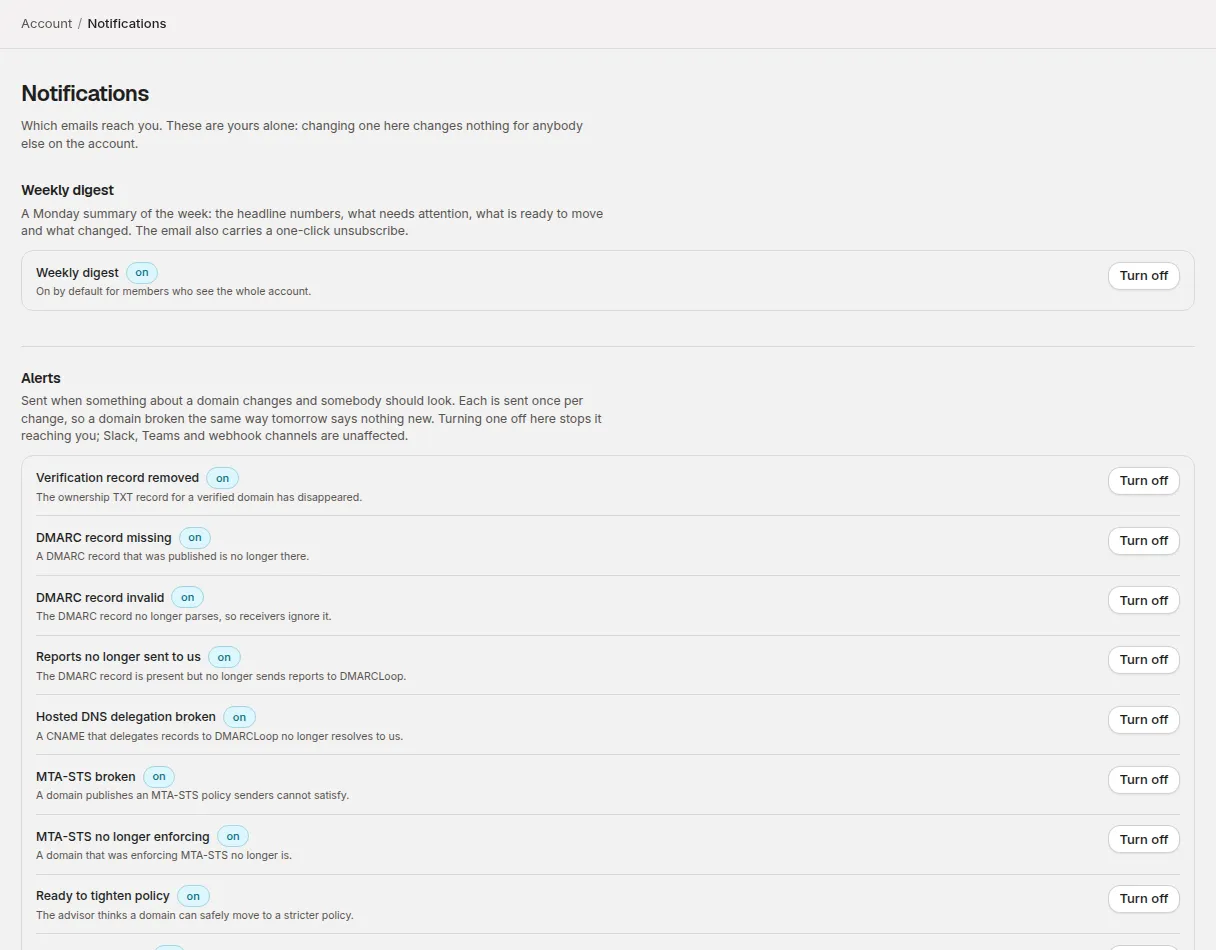
DMARCLoop emails you when something about a domain changes and a person should look. Account → Notifications is where you choose which of those emails reach you. The choices are yours alone: changing a switch there changes nothing for anyone else in the account.
Who receives alerts
Alerts about a domain go to every Owner, Admin and Analyst who can see that domain’s client, unless they’ve turned that alert off. Read only members don’t receive alerts, whatever their switches say — alerts are for the people who can act on them.
Each alert is sent once per change. A record broken the same way tomorrow doesn’t send a second email.
Alert emails are sent on every plan, the free plan included. What a plan adds is delivery to Slack, Microsoft Teams or a webhook; the pricing page lists which plans include it.
An alert about something that covers the whole account rather than one client — a scheduled report or an alert channel for every client — goes only to members whose access covers every client.
Alerts
Under Alerts, each kind has its own Turn off / Turn on button. They’re all on until you change them. A switch you’ve changed is marked your choice; choose use default to put it back.
| Alert | When it’s sent |
|---|---|
| Verification record removed | The ownership TXT record for a verified domain has disappeared. |
| DMARC record missing | A DMARC record that was published is no longer there. |
| DMARC record invalid | The DMARC record no longer parses, so receivers ignore it. |
| Reports no longer sent to us | The DMARC record is present but no longer sends reports to DMARCLoop. |
| Hosted DNS delegation broken | A CNAME that delegates records to DMARCLoop no longer resolves to us. |
| MTA-STS broken | A domain publishes an MTA-STS policy senders cannot satisfy. |
| MTA-STS no longer enforcing | A domain that was enforcing MTA-STS no longer is. |
| Ready to tighten policy | The advisor thinks a domain can safely move to a stricter policy. |
| Mail being blocked | An enforcing domain has legitimate-looking mail failing DMARC. |
| Reports stopped | A domain that was receiving DMARC reports has had none for seven days. |
| Policy loosened | The published DMARC policy was loosened without the advisor recommending it. |
| SPF lookup limit exceeded | The SPF record needs more than ten DNS lookups, so receivers treat it as failing. |
| SPF record invalid | The SPF record does not parse, or the domain publishes more than one. |
| Hosted SPF not updating | The flattened SPF record DMARCLoop serves could not be rebuilt three times in a row. |
| Alert channel failing | A Slack, Teams or webhook channel has rejected five alerts in a row. |
| Scheduled report failed | A scheduled report could not be rendered or sent. |
| Scheduled report had nobody to send to | Every recipient of a scheduled report is on the suppression list. |
The two MTA-STS alerts are also only sent on plans that include MTA-STS monitoring.
Turning an alert off here stops the email to you. It doesn’t stop the same alert going to a Slack, Teams or webhook channel (below).
Staying at p=reject covers which of these matter most once a domain is enforcing.
The weekly digest
The Weekly digest is a Monday summary of the week: the headline numbers, what needs attention, what is ready to move and what changed. It has its own switch at the top of the page, and every digest email has a one-click unsubscribe.
Whether it starts on depends on who you are:
- On for owners, admins and analysts who can see the whole account.
- Off for Read only members. Turn it on to receive it.
- Off for members whose access covers particular clients. Turned on, they receive one digest per client they can see.
Accounts that manage several clients
If your account manages clients, an owner, admin or analyst who sees the whole account also chooses How you receive it: One email for the whole account (every client in one table, the ones needing attention first) or One email per client (the client’s name in the subject, so mail rules can file them).
A Per client table below then lets you override the digest and alerts client by client. Setting a client’s alerts to Off stops every alert about that client’s domains reaching you. Digest overrides apply when you receive one email per client.
Always sent
The Always sent list shows the emails you can’t turn off. They’re about something that happened to your account, or a milestone a domain reached, and each is sent once.
| Marked | When it’s sent | |
|---|---|---|
| Welcome | milestone | Once, when a new account confirms its email address. |
| Invitation | about your account | Somebody has been invited to join an organisation. |
| Email verification | about your account | Confirms a new address at sign-up. |
| Password reset | about your account | A password reset link somebody asked for. |
| Two-factor removed | about your account | Our support team removed the second factor from a login, so it can be enrolled again. Sent only to the person whose login it was (how it works). |
| Records to publish | milestone | The DNS records a newly added domain needs, written to be forwarded to IT. |
| Setup reminder | milestone | A domain still has a record missing 2, 7 and 21 days after it was added. |
| First report | milestone | The first DMARC report for a domain has arrived, so setup is working. |
| Enforcement reached | milestone | A domain reached p=quarantine or p=reject. |
| Statement ready | about your account | An MSP’s draft usage statement is ready to review. Sent only to owners and admins whose access covers the whole account. |
| Member welcome | milestone | Once, when an invited member signs in for the first time. |
| No domain yet | milestone | Three days after welcome with no domain added. Sent once. |
| Records for imported domains | milestone | One summary of the records every domain in a CSV import needs. |
| Hosted DNS delegation active | milestone | The CNAMEs delegating a domain to DMARCLoop resolve; hosted records are live. |
To see every one of these that has actually been sent, and to whom, open the email log.
Your technical contact
Emails about a domain’s DNS — the records to publish, setup reminders and the DNS alerts — are also copied to a technical contact if one is on file for your account: the person who edits your DNS, who doesn’t need a login. Emails about the account itself aren’t copied. There’s no setting for this in the dashboard yet; contact us to add or change the address.
Slack, Microsoft Teams and webhooks
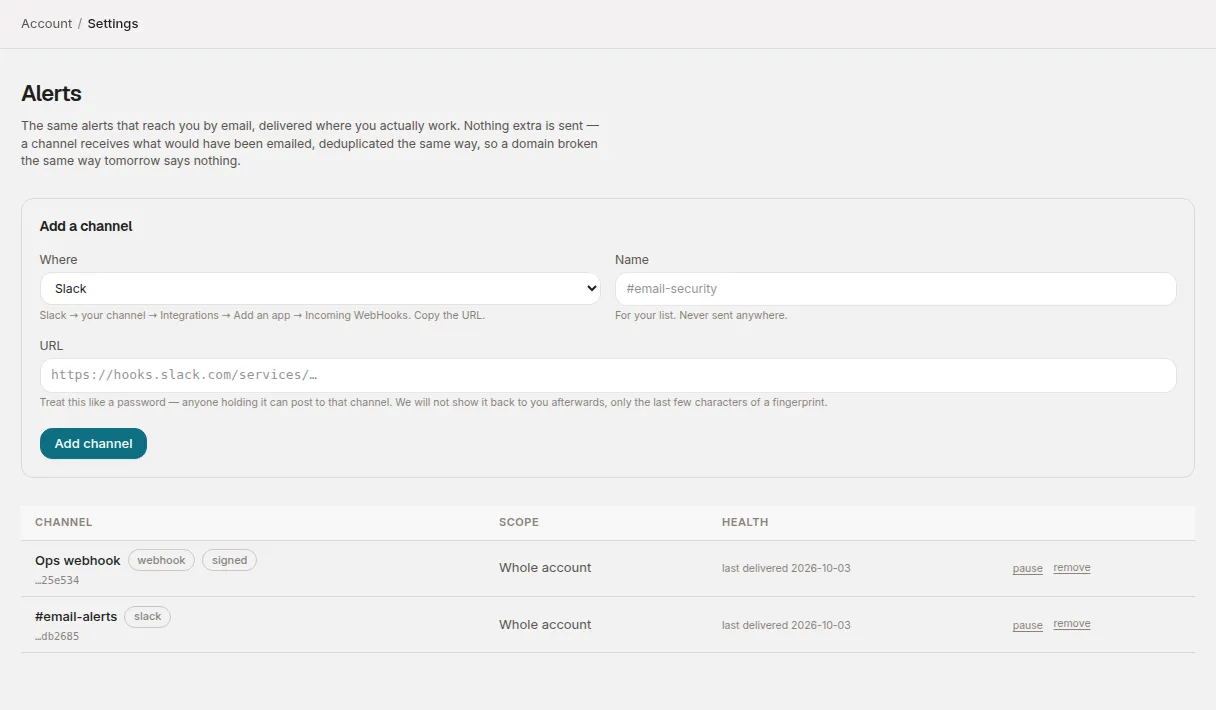
On plans that include alert channels (see the pricing page), the same alerts can also go where your team works. Open Account → Settings and choose Set up channels under Alerts. On a plan without them, the page says Not included in your plan.
A channel receives exactly what would have been emailed, deduplicated the same way. Nothing extra is sent.
To add one (needs Analyst or above):
- Under Add a channel, choose Where: Slack, Microsoft Teams or Webhook.
- Give it a Name — the channel name is a good one.
- Paste the incoming-webhook URL. The form says where to find it in Slack or Teams. A webhook can be any HTTPS endpoint you control; DMARCLoop POSTs JSON to it.
- If your account manages several clients, choose the Scope: Everything in this account or one client.
- For a webhook, leave Sign the requests ticked to have each request signed, so your endpoint can check it came from DMARCLoop and reject replays. The signing secret is shown once, straight after you add the channel. Copy it then; it can’t be shown again, and if you lose it you’ll need to make a new channel.
- Choose Add channel.
Nothing is sent when you add a channel; the next real alert for that scope is the first thing it receives.
Treat the webhook URL like a password — anyone holding it can post to the channel. After you add it, the table shows only the end of a fingerprint.
The table shows each channel’s Health: when it last delivered, or how many failures in a row and the last error. After five rejected alerts in a row, the people who receive alerts get an Alert channel failing email. Use pause and resume to stop and restart a channel, and remove to delete it.
Stuck? Reply to any email DMARCLoop sends, or contact us — a person reads it.