For MSPs Step 26 of 30
Clients, domains and who sees what
How an MSP account is organised into clients, how domains belong to them and move between them, and what a member limited to one client sees.
Updated
If you manage DMARC for other organisations, your account is organised into clients: one per customer. Every domain belongs to exactly one client, and the client is what you filter by, schedule reports for and give your customers’ own staff access to.
MSP accounts are set up by us rather than at signup. If you’re an MSP and your account doesn’t show Clients in the sidebar, contact us. A direct (non-MSP) account has a single client, created for it, and never sees any of this.
Add a client
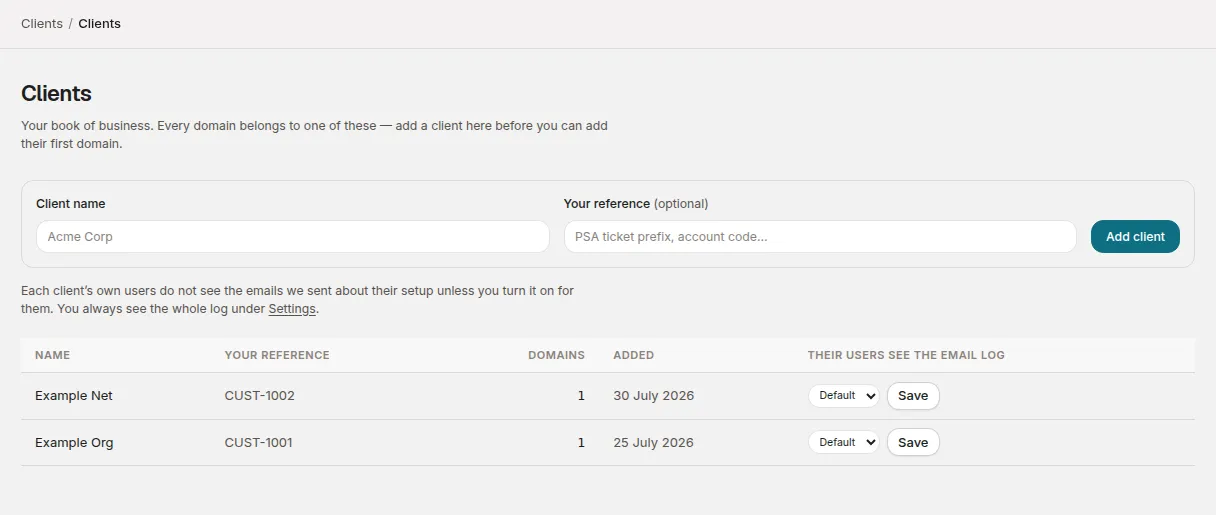
Clients → Clients lists your book of business. To add one:
- Enter the Client name.
- Optionally, add Your reference: a PSA ticket prefix, an account code, whatever you use internally. A bulk import can match rows to a client by this reference as well as by name.
- Choose Add client.
Adding a client needs the Admin role and access to every client in the account. The table shows each client’s Name, Your reference, number of Domains and when it was Added. Clients can’t be renamed or removed from this page; contact us if one needs changing.
Domains belong to a client
An MSP account needs a client before it can add a domain. Domains → Add domain then asks which Client the domain is for; a bulk import can place hundreds at once.
The same domain can be monitored under two different clients. Each keeps its own reports and history, and neither sees the other’s. One client can’t hold the same domain twice.
Where you work across clients:
- Domains → All domains has a Client column.
- Domains → DNS records has a chip per client (and All clients), and Export CSV and Export Excel export whichever you’ve chosen, ready to hand to whoever runs that customer’s DNS.
Move a domain to another client
If a domain was added under the wrong client, or changes hands:
- Open the domain and find the Move section.
- Choose Move to another client, pick the Client and choose Move domain.
Its reports, history and reporting address move with it, so nothing in the customer’s DNS changes. It stops appearing under the old client straight away. Moving needs the Admin role, and the section only appears when the account has another client to move to.
Give a customer’s staff access
You can invite your customer’s own people into the account, limited to their client. Invite people and set their roles covers the invitation itself. For an MSP the part that matters is Which clients they can see:
- Only the ones I choose is the default. Tick their client. They won’t see clients you add later.
- Every client is for your own technicians.
The role decides what they can do within that client: Read only, Analyst or Admin. An invitation counts against your seats from the moment it’s sent.
What a member limited to one client sees
They see their own client’s domains, reports, sources and DNS records, and the dashboard as it applies to those domains. Alert emails about a domain go only to people who can see its client.
Account-level things are closed to them, whatever their role:
| Not available | What they see instead |
|---|---|
| Statements, Usage and Billing | The links aren’t in their menu. Opened directly, each page says Your access covers one client, and billing is an account-level record. Whoever manages this account handles it, and your invoices come from them. |
| The account’s name and invoice details in Settings | Your access covers one client. This account’s name and invoice details belong to whoever manages it. |
| Your plan, its limits and how much of them the account has used | Adding a domain past the account’s limit says This account is monitoring as many domains as its plan covers. Whoever manages the account can make room, or remove a domain you no longer need. A bulk import marks those rows over the number of domains this account covers. Inviting past the seat limit says No seats left on this account. Whoever manages it can make room. |
| The Statement ready email | Never sent to them, whatever their role. |
| Entries about the whole account in the Access log | They see only entries about their own client — not plan changes, contract terms, statements or anything else about the account as a whole. |
| Billing emails in the Email log | Statements, invoices and payments aren’t shown to them. |
| Upgrade prompts | Where an account-wide admin gets a link to Billing, they’re told Your plan doesn’t include this. Ask whoever manages your DMARCLoop account to change the plan. |
| Adding clients | No Add client form. The Clients page lists only the clients they can see. |
| Your logo on scheduled reports | A note that the logo is handled by whoever manages the whole account. |
| Scheduling a report for Every client | They can schedule reports for their own client only. |
| Inviting anyone to other clients, or to Every client | They can invite people to their own client only. |
Two things are worth knowing about email:
- Read only members don’t receive alert emails. Owners, admins and analysts who can see the client do. If a customer contact should hear about a broken record, give them Analyst or above.
- By default, a client’s own members can’t see the email log of what we’ve sent about their domains. Change it per client in the Their users see the email log column on the Clients page: Default, Shown or Hidden, then Save. Your own account-wide staff always see the whole log; the email log explains what’s in it.
When DMARCLoop staff act in your account
If you ask us to do something in your account, such as running an import for you, our staff do it inside a support session that records who opened it and the reason they gave. Account → Access log lists every one, with that reason, so you can see exactly when we were in the account and why.
Stuck? Reply to any email DMARCLoop sends, or contact us — a person reads it.