For MSPs Step 27 of 30
Import domains in bulk
Add up to a thousand domains at once from a pasted list or a CSV, see exactly what each row would do first, and get one records email per client.
Updated
Domains → Import adds domains from a pasted list or a CSV file, up to 1,000 rows at a time. Nothing is added until you’ve seen a preview of what every row would do. It’s on every account, not just MSP ones, and needs the Analyst role or above. Your plan’s domain limit still applies, and the preview shows where it runs out.
What the file can look like
The simplest input is a plain list, one domain per line, with no header:
example.com
example.net
example.org
For more than one client, use a CSV with a header row. It needs a
domain column, and a client column when the domains belong to
different customers:
domain,client
example.com,Example Holdings
example.net,Example Holdings
example.org,Example Trading
| Column | Header names recognised | What goes in it |
|---|---|---|
| Domain | domain, domains, fqdn, hostname, domain name, domain_name |
The domain. A URL or an email address is fine: https://www.example.com/contact and postmaster@ are read as www.example.com and example.com. |
| Client | client, customer, company, account, client name, client_name, organisation, organization |
A client’s name, or the reference you gave it under Your reference on the Clients page. Case doesn’t matter. |
Headers aren’t case-sensitive, other columns are ignored, and fields may be quoted. Download a sample, under the box, gives you a file already in this shape, filled with your own client names.
Internationalised domains need to be in their xn-- form.
Choosing the client
If the account has more than one client, a Client menu sits above the box:
- Use the client column in the file reads each row’s client from the file.
- Choosing a client puts every row under that client and ignores the file’s column, so a spreadsheet naming a different customer can’t send a row somewhere you didn’t intend.
With only one client, everything goes to it and the column isn’t needed.
Preview, then import
- Paste the list into Domains, or choose a file (it’s read into the box, so you can check it).
- Choose Preview. Nothing has been added yet.
- Read What this would do. Domains that would be added are grouped by the client they’ll land under; check the mapping. Everything else is listed under Rows needing attention, each with its line number as a spreadsheet numbers it.
- Fix the file if you need to and choose re-check, or choose Import N domains to add the ones that are ready.
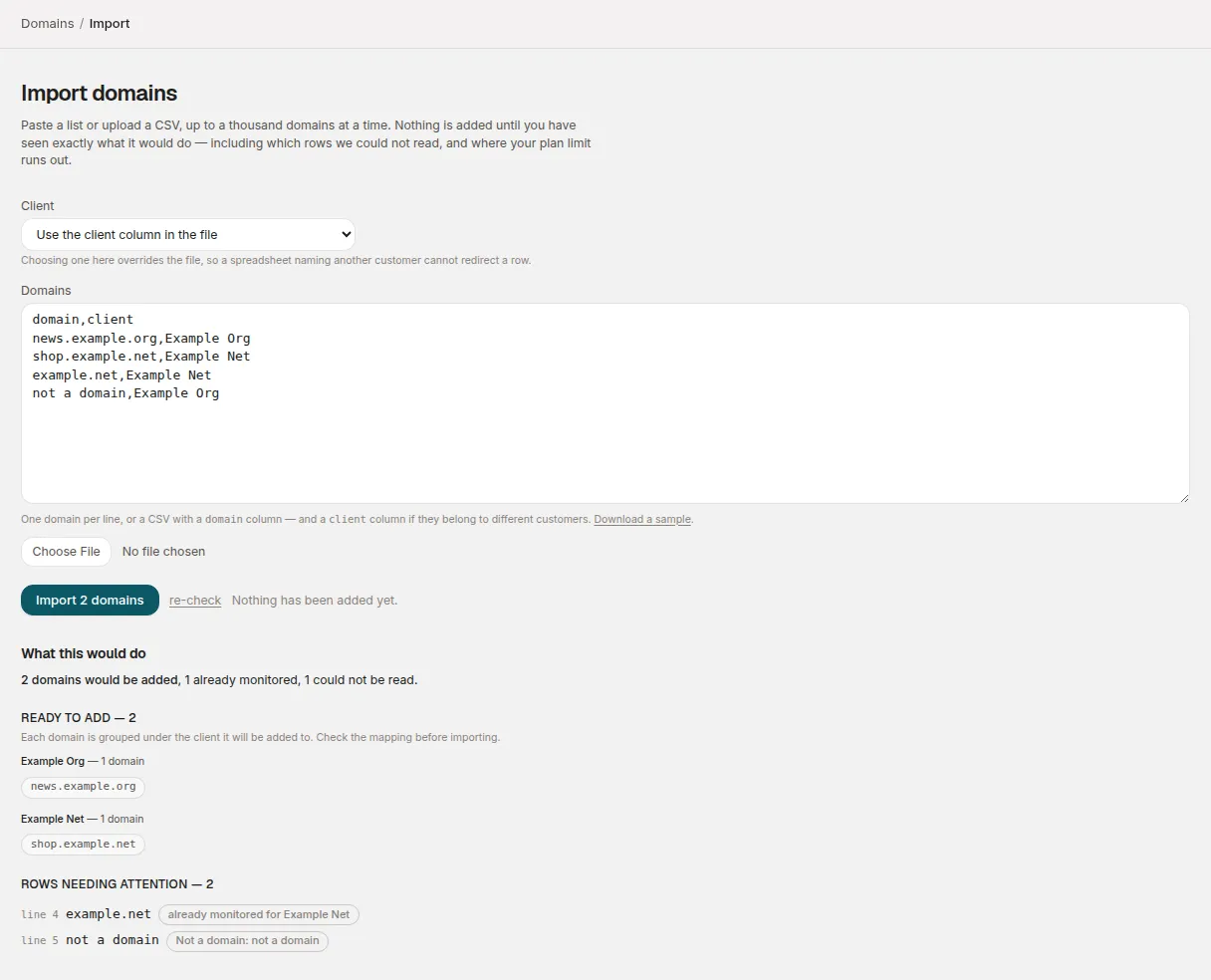
| Shown against a row | Meaning |
|---|---|
| already monitored for … | That client already has this domain, or it appears earlier in the file. Not an error: re-importing a list is safe. |
| Blank. / Not a domain: … | The row couldn’t be read as a domain. |
| no client called “…” | Nothing matched the client cell by name or reference. |
| “…” matches more than one of your clients | Two clients share that name. Use the reference instead. |
| No client given, and you have more than one. Add a client column. | The row has no client and nothing was chosen in the Client menu. |
| over the N-domain limit on … | Your plan’s domain limit is reached at this row. The rows before it are still added. |
| failed: … | Something went wrong adding it. The rest of the import is unaffected. |
Importing again re-checks everything from scratch, so the result can differ from the preview if something changed in between, such as a colleague adding one of the same domains.
A file over 1,000 rows (or over 512 KB) is refused before anything is checked. Split it and import the parts; domains already added come back as already monitored.
After the import
Each new domain still needs its DNS records published before it verifies:
an ownership TXT record and a _dmarc record, both specific to that domain.
Publish the DNS records covers what they are.
Rather than one email per domain, the import sends one email per client listing every domain added for it. Each domain in the list has its own records page: a link that works without an account, shows that domain’s records and nothing else about your account, has a Check now button, and expires after 30 days. Forward it to whoever runs that customer’s DNS.
The email goes to you, and to the owners, admins and analysts who can see that client. If a link expires, Email these records on the domain page sends a fresh one.
Domains → Onboarding tracks every imported domain through to its first report.
Stuck? Reply to any email DMARCLoop sends, or contact us — a person reads it.