Getting started Step 1 of 30
Create your account
Sign up with your work email, confirm the address, and know who else should be in the account before they sign up on their own.
Updated
Everything in DMARCLoop hangs off an account. Creating one takes a couple of minutes and changes nothing about your domain or your mail.
Sign up
- Choose Start free at the top of any page on this site. It opens the Create your account page in the app.
- Enter your first name, last name, work email and a password. The phone number is optional — it helps us recognise you if you call support, and nothing signs in with it.
- Tick the box to accept the Terms and Privacy Policy, then choose Create account.
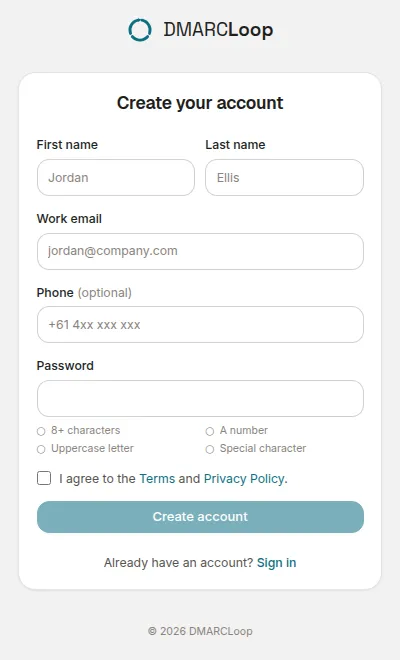
You can also sign up with your Google account instead of a password, using the Google button on the same page. You end up in the same place either way.
Confirm your email address
After Create account, the page tells you a link has been sent to the address you entered. Open that email and follow the link. Confirming the address also signs you in, and takes you to the next step: choosing a plan.
You cannot sign in with a password until the address is confirmed. If the email hasn’t arrived after a few minutes, check your spam folder first.
Your organisation
Signing up creates an organisation — the account that holds your domains, reports, people and billing — with you as its owner.
It starts out named after you. The first time you open the dashboard it asks for your company’s name and country (see Choose a plan); you can also rename the organisation under Account → Settings at any time.
Bring colleagues in by invitation, not by sign-up
Two people from the same company who each sign up get two separate organisations, with separate domains and separate bills. DMARCLoop never merges accounts on a shared email domain, because doing so would put a stranger inside your account.
So one person signs up, and everyone else is invited from Account → People → Invite someone. Each invitation picks a role:
| Role | In the form |
|---|---|
| Read only | Read only — sees everything in their clients |
| Analyst | Analyst — read only, plus verifying domains and advancing policy |
| Admin | Admin — clients, domains, people, billing and plan |
| Owner | Owner — everything an admin can do, plus owners, single sign-on and directory sync |
A role can be changed later from change access on the People page.
Invite people and set their roles has the detail. Each person in the account takes a seat; the pricing page lists how many each plan includes. Invite people rather than sharing one login: each person then has their own role, client access and two-factor authentication. Whoever looks after your DNS — an IT provider, say — doesn’t need an account at all: the records email in step 4 is written to be forwarded to them.
Next
Choose a plan — or start on Free and decide later. Then set up two-factor authentication for your sign-in.
Stuck? Reply to any email DMARCLoop sends, or contact us — a person reads it.