Your first domain Step 4 of 30
Add your first domain
Which domain to start with, what to type, and what DMARCLoop sets up the moment you add it.
Updated
Adding a domain is how monitoring starts. It takes a minute, and nothing about how your mail is delivered changes when you do it — that only happens later, if and when you choose to tighten the policy.
Which domain to start with
Start with the domain your business sends most of its mail from: the part after
the @ in your staff’s addresses, such as example.com. That’s where the
reports will be most useful soonest, and where spoofing would hurt most.
Domains that never send mail (a parked domain, a marketing domain that only hosts a website) are worth adding too, but they can wait. You can add more at any time up to your plan’s limit.
Add it
- In the app, choose Domains → Add domain.
- Type the domain, for example
example.com. You can paste a web address (https://www.example.com/) or an email address (alex@) and it is reduced to the domain for you.example.com - Choose Add domain.
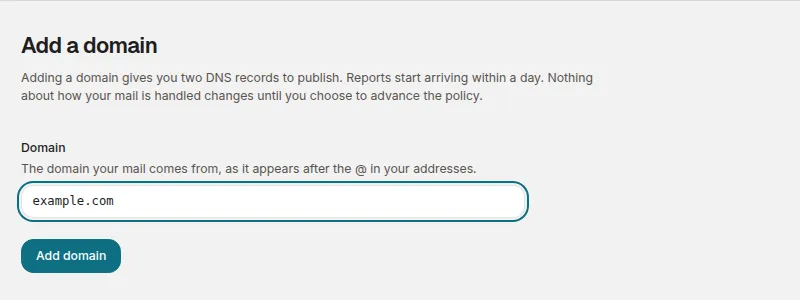
Adding a domain needs the Analyst role or above. If your plan’s domain limit is reached, the form says so and links to the plans; see Choose a plan.
What happens when you add it
Three things are created for the domain, and none of them touches your DNS:
- A reporting address, unique to this domain, such as
d1k7m2q9x4r8t6w3za@. Mail receivers send this domain’s DMARC reports to it. It’s deliberately random so it reveals nothing about you, and it is never reused — even if you remove the domain.reports.dmarcloop.com - A verification value that proves you control the domain once it is published in DNS.
- The records to publish, worked out from what your domain already has.
DMARCLoop also reads your domain’s current DMARC record straight away. If you
already have one, the record we ask you to publish is your existing record
with our reporting address added — your policy, and any other services’
report addresses, stay exactly as they are. If you have none, it is a new
record at p=none, which only asks receivers for reports and changes nothing
about delivery.
You are taken to the domain’s page, which shows the records to publish (next step), and we email you the same records. That email is written to be forwarded to whoever edits your DNS.
Next
Stuck? Reply to any email DMARCLoop sends, or contact us — a person reads it.