Your account Step 19 of 30
Invite people and set their roles
Invite colleagues from Account → People, choose a role and which clients they can see, and manage invitations and removals.
Updated
Everyone who works in your DMARCLoop account signs in as themselves. You bring them in from Account → People; they never join by signing up on their own (see Create your account for why).
Everyone in the account can open People and see who else is there. Only an Admin or Owner sees the Invite someone form and the controls to withdraw invitations, change a member’s access and remove people.
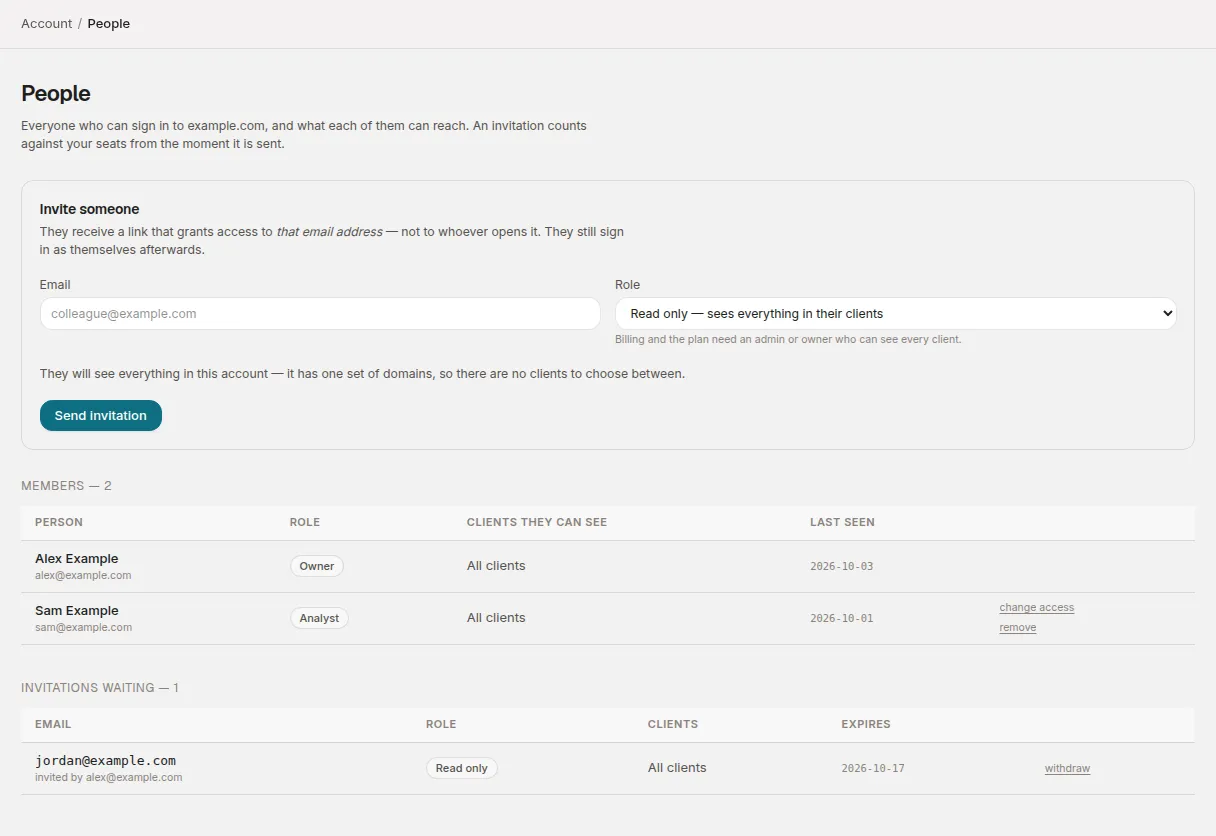
Invite someone
- Go to Account → People.
- Under Invite someone, enter their Email.
- Choose a Role (see the table below). New invitations start on Read only.
- If your account manages several clients, choose under Which clients they can see (below). An account with a single set of domains isn’t asked.
- Choose Send invitation.
The page confirms who it was sent to and how many days the invitation lasts.
Roles
The role list in the form describes each one; this is what each can do in practice. The same words appear in the invitation the person receives and in change access (below).
| Role | In the form | Can do |
|---|---|---|
| Read only | Read only — sees everything in their clients | Sees the dashboard, domains and reports for the clients they can see. Changes nothing. |
| Analyst | Analyst — read only, plus verifying domains and advancing policy | Everything above, plus adding, importing and verifying domains, acting on policy advice, the hosted SPF settings, and setting up alert channels and scheduled reports. |
| Admin | Admin — clients, domains, people, billing and plan | Everything above, plus inviting people and changing or removing members, removing and moving domains, setting up and turning off hosted records and their DMARC policy, failure-report settings, the account’s details in Settings, and Billing and Usage. |
| Owner | Owner — everything an admin can do, plus owners, single sign-on and directory sync | Everything above, plus making someone an owner, changing or removing another owner, and single sign-on and directory provisioning. |
Some of this also depends on scope. Under the role list the form says Billing and the plan need an admin or owner who can see every client. Billing, Usage, the account details in Settings, single sign-on and directory provisioning belong to the whole account, so they need a role and access to every client. An admin whose access covers particular clients doesn’t see them in the menu, and is told that whoever manages the account handles them.
Only an owner can make someone an owner, so the Owner option only appears for owners.
Which clients they can see
Role decides what someone can do; client access decides where. The two are set separately.
- Only the ones I choose — They will not see clients added later unless somebody adds them. Tick the clients they should see. You must tick at least one; a member with no clients would sign in and see nothing. This is the default, and when there’s only one client it’s ticked for you.
- Every client — Including clients added in future.
Every client is only offered to someone whose own access covers every client. If yours covers particular clients, you can only invite people to clients you can see yourself.
If your account manages a single set of domains rather than several clients, there’s nothing to choose. The form says They will see everything in this account — it has one set of domains, so there are no clients to choose between.
What the person you invite receives
An email with the subject “[your account name] has invited you to DMARCLoop”. It says who invited them, the role they would join as, a link to accept, and the date the link expires.
The link opens a page headed Join [your account name] on DMARCLoop that shows the address the invitation is for, the role and the clients they will have access to. They choose Accept invitation, then:
- If they’re new to DMARCLoop, they choose Create your login and sign up with the same address the invitation was sent to.
- If they already have a DMARCLoop login (from another account, say), they choose Sign in and find your account in the Account switcher at the top of the sidebar.
The link grants access to the invited email address, not to whoever opens it. A forwarded invitation does nothing for anyone signed in as a different address.
Invitations waiting
Sent invitations appear under Invitations waiting with the role, clients, who invited them, and the Expires date. An invitation lasts 14 days.
- To change the role or clients on an invitation, choose withdraw next to it and send a new one. An address can only have one invitation waiting at a time.
- When an invitation expires, it moves to Earlier invitations. Send a new invitation to the same address; the expired one is cleared out of the way when you do.
- A withdrawn invitation’s link stops working straight away.
Earlier invitations keeps a record of every invitation that was accepted, withdrawn or expired.
The Members table
Members lists everyone in the account with their Role, Clients they can see and Last seen date. A member marked invited, not signed in yet has been added but hasn’t signed in.
Changing a member’s role or clients
Choose change access in their row. The form says Changing and their address, with the same Role list and Which clients they can see choice as an invitation, set to what they have now. Change either and choose save, or cancel to leave it.
The page confirms the change — for example someone@example.com now has the Analyst role, with 2 clients. Clients added later are not included. It applies from their next page load. Nothing is emailed to them. The change is recorded in Account → Access log, as are invitations sent and withdrawn and members removed.
change access only appears where the change could be made:
- Not on your own row. You cannot change your own role or access. Ask a colleague to do it.
- Not on an owner’s row unless you’re an owner. Only an owner can change an owner, or make somebody one.
- Not on the row of someone who can see every client unless you can too. If your access covers particular clients, you can only give someone clients you can see yourself, and never Every client.
- The last owner stays an owner. This is the only owner. An account with no owner has nobody who can make somebody else an owner or manage single sign-on. Make someone else an owner first.
To change the role or clients on an invitation that hasn’t been accepted yet, withdraw it and send a new one (see Invitations waiting).
Removing someone
Choose remove in their row, check the email address it shows, then choose yes, remove. Removal takes effect immediately; they keep their DMARCLoop login for any other account they belong to, and any invitation still waiting for them is withdrawn.
A few rules keep the account from being locked out:
- You can’t remove yourself. Ask a colleague.
- Only an owner can remove another owner.
- The last owner can’t be removed. Make someone else an owner first.
- An admin whose access covers particular clients can’t remove a member who can see the whole account.
Seats
How many people an account can have depends on its plan; the pricing page lists the seats each plan includes. On a plan with a seat limit, Invite someone shows how many are in use — for example 1 of 3 seats in use, counting invitations that have not been accepted. — and Send invitation is unavailable once they’re all taken: No seats left. Withdraw an invitation, or move to a larger plan. Seats count invitations that haven’t been accepted yet as well as members, so withdrawing an unused invitation frees one.
A member whose access covers particular clients isn’t shown the account’s seat count. If the seats run out, they see No seats left on this account. Whoever manages it can make room.
Single sign-on and directory provisioning
On plans that include them (see the pricing page), an owner can connect your identity provider from Account → Settings:
- Single sign-on lets people sign in through your identity provider. It covers email domains you’ve verified in DMARCLoop, is set up in steps, and only affects how anyone signs in once you turn it on. You can then require it for those domains.
- Directory provisioning (SCIM) adds and removes members as your directory changes. Everyone it creates is Read only, and it can’t remove an owner or an admin. Tokens last at most a year.
Both need the Owner role and access to the whole account. See Account settings.
Related
- Notifications and alerts — who receives which emails depends on role.
- Access log — when DMARCLoop staff open your account, and the changes made on People.
- Set up two-factor authentication — each person protects their own sign-in.
Stuck? Reply to any email DMARCLoop sends, or contact us — a person reads it.