Reports Step 18 of 30
Saved and scheduled reports
Email a PDF or CSV DMARC report weekly or monthly to people who don't log in, keep copies to download later, and put your logo on them.
Updated
Everything in a scheduled report is on your dashboard already. A schedule is for getting it in front of somebody who doesn’t log in: a board, a finance team, or for an MSP, the customer whose domains you manage.
Scheduled reports, and the Saved reports archive that goes with them, are available on plans that include them; the pricing page lists what each plan includes. On a plan without them, both pages say Not included in your plan.
Set up a schedule
Schedules live under Settings → Scheduled reports (choose Set up a schedule on the Settings page). Anyone can see the list; creating, editing, pausing or deleting a schedule needs the analyst role or above.
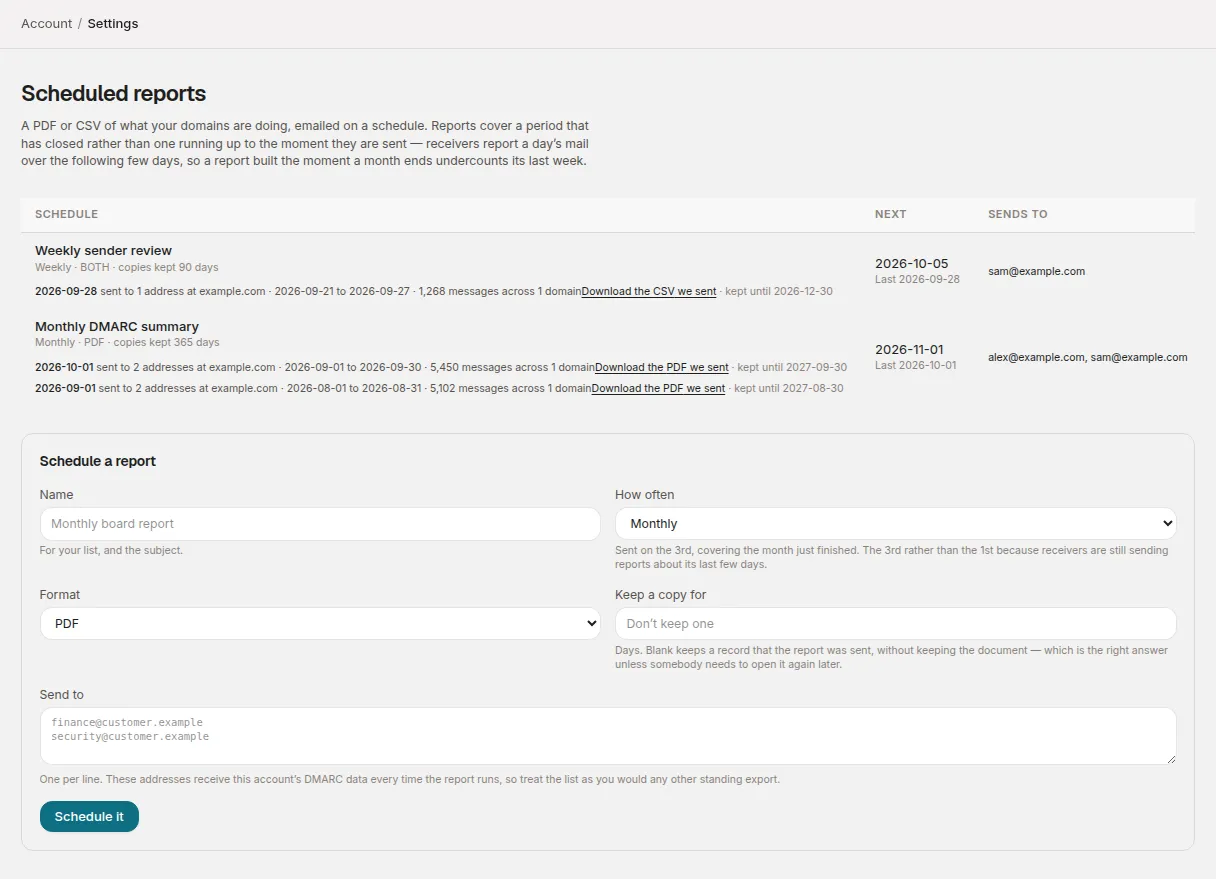
Fill in Schedule a report:
| Field | What it does |
|---|---|
| Name | For your list, and the email’s subject. |
| Covering | MSP accounts only: one client, or Every client. A member with access to only some clients can schedule only for those. |
| How often | Monthly or Weekly (below). |
| Format | PDF, CSV or Both, attached to the email. |
| Keep a copy for | A number of days, or blank to keep none (see saved reports). |
| Send to | Email addresses, one per line, up to 20. |
Then choose Schedule it.
Treat Send to as you would any other standing export: every address on it receives the account’s DMARC data each time the report runs. Addresses on our email suppression list (for example, ones that have bounced) are skipped.
When reports are sent, and what they cover
Reports always cover a period that has already closed, never one running up to the moment they are sent. Receivers report a day’s mail over the following one to three days, so a report built the moment a month ends would undercount its last few days, and always in the same direction.
| How often | Sent | Covers |
|---|---|---|
| Monthly | The 3rd of each month | The previous calendar month |
| Weekly | Each Wednesday | The week from Monday to Sunday that closed on Monday |
Reports are sent at 06:00 UTC. A new schedule goes out on the next of those days; until then it says No runs yet. The first one goes out on the next scheduled morning.
What a report contains
The email’s subject is the schedule’s name, then the client (or, for a
report covering every client, your account’s name), then the period:
The PDF has:
- Summary: messages reported, how many passed DMARC, and the pass rate.
- Domains: each domain with its Messages, Passing, Rate and Policy.
- Where the mail came from: the ten busiest sending sources, by provider name where we recognise one.
- Reading these numbers: notes on what the figures don’t show. Every report says the period was left to close before it was built. It also names any domain that had no mail reported (shown as a dash, not 100%), any domain that isn’t verified, and any domain enforcing a DMARC policy while some of its mail still fails.
The CSV has one row per domain, with the columns Domain, Client,
Messages, Passing DMARC, Pass rate, Published policy, Verified,
Period start and Period end. A domain with no mail has a blank pass rate,
not 0%. The two formats are built from the same data, so they always agree.
Manage a schedule
Each schedule in the list shows how often it runs, its format, whether copies are kept, its Next run and who it Sends to.
- Pause stops it sending and keeps the recipient list; Resume starts it again.
- Edit changes the name, frequency, format, retention or recipients, then Save changes.
- Delete removes the schedule after you confirm with Delete it.
Under each schedule is its run history: when it ran, how many addresses it was sent to and at which domains, the period, and how many messages it covered. A run that didn’t send says why, for example when every recipient is on the suppression list or there are no domains in the report’s scope. The schedule also shows Last run did not send: with the reason, so a report that stops arriving doesn’t go unnoticed.
Saved reports
By default, nothing but a record that a report was sent is kept. To keep the document itself, set Keep a copy for to a number of days (1 to 3650). If a schedule sends Both, the PDF is the copy that’s kept.
Reports → Saved reports lists every kept copy across all schedules, with what it Covers, when it was Sent, its size, and kept until its expiry date. Choose Download PDF or Download CSV to open one. The same copies are linked from each schedule’s run history as Download the PDF we sent.
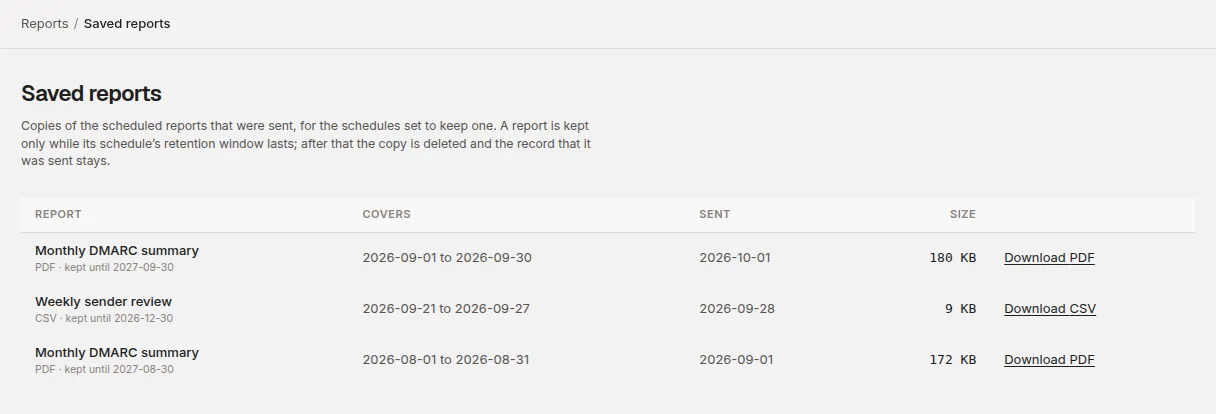
When a copy’s retention ends it’s deleted, and the record that the report was sent stays. Changing Keep a copy for affects future runs only; copies already stored keep the expiry they were given. To remove those now, open Edit on the schedule and choose Delete stored copies.
If Saved reports is empty, either no schedule is set to keep a copy or none has run since it was set.
Your logo (MSPs)
MSP accounts can put their own logo at the top of every scheduled PDF. Under Your logo on the Scheduled reports page, upload a PNG or JPEG under 2MB. SVG isn’t accepted, because an SVG can carry scripts and this file goes into documents we send on your behalf.
The logo is account-wide: it appears on every client’s reports, so only an administrator with access to the whole account can change it. It appears on scheduled reports only. The dashboard and the login page stay DMARCLoop-branded. Without a logo, reports go out unbranded.
Related
- Read the DMARC report
- Compliance reports, for a framework assessment of one domain as a PDF
Stuck? Reply to any email DMARCLoop sends, or contact us — a person reads it.