For MSPs Step 37 of 39
White-label
Give your clients your own product name, logo, colours and sign-in address today, then add your own domain, sending domain and report domain.
Updated
White-label puts your product in front of your clients instead of ours: your name, logo and colours in the app, in alerts and digests and on PDF reports. It’s for MSP organisations, on plans that include it; it’s arranged with us, so talk to us. Setting it up needs the Owner or Admin role, from White-label in your MSP organisation’s sidebar.
You can be up and running in a few minutes. The brand and a portal address need nothing from your DNS, so your clients have a sign-in page under your name today. Your own domain, sending domain and report domain can follow, each when it’s ready. Until a part is set up, a neutral one stands in for it, so your clients never see DMARCLoop’s name.
| Part | Needs your DNS | Until it’s set up |
|---|---|---|
| Brand: name, colours, logo | No | Not white-label yet |
| Portal address | No | Clients sign in at app.dmarcfeedback.com |
| App hostname | Yes | Your portal address |
| Sending domain | Yes | A neutral address, under your product name |
| Report domain | Yes, and us | dmarcfeedback.com |
Brand
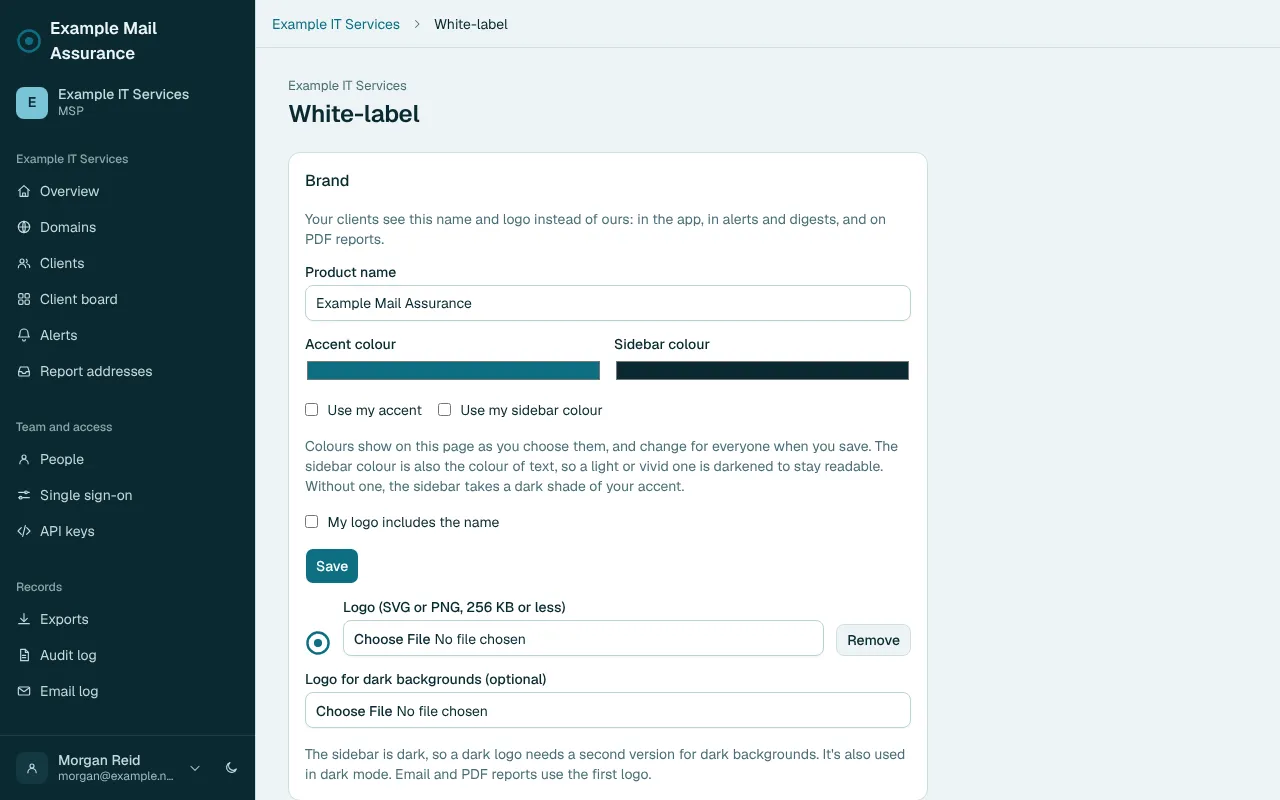
Enter the Product name and choose Turn on white-label. From then on, your MSP organisation and every client use it: you’ll see the app change around you, and so will anyone signed in to one of your organisations.
- Accent colour, with Use my accent: your colour for buttons and links, in place of ours. The rest of the app’s colours follow from it, in light and dark mode.
- Sidebar colour, with Use my sidebar colour: your colour for the sidebar. It’s also the colour of text in light mode, so a light or vivid colour is darkened to stay readable. Without one, the sidebar takes a dark shade of your accent.
- Logo (SVG or PNG, 256 KB or less): used in the app, in email and on PDF reports.
- Logo for dark backgrounds (optional): the sidebar is dark, so a dark logo needs a second version. It’s also used in dark mode. Without one, your first logo is used everywhere.
- My logo includes the name: the app shows your logo alone, without the product name beside it.
Colours show on the page as you choose them, and change for everyone when you choose Save. A logo is live as soon as it’s uploaded; Remove takes it away again. The colours for a passed, partial or failed check stay as they are: they mean the same thing in every portal.
Portal address
An address your clients can sign in at straight away, such as
example-mail.dmarcfeedback.com. There’s nothing to publish in your DNS.
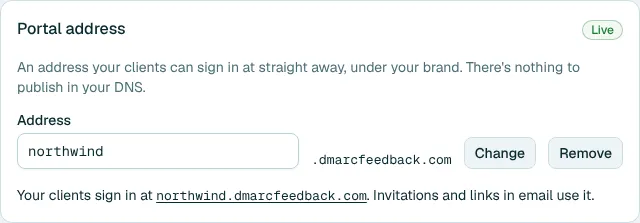
Enter the first part under Address and choose Add. It’s 3 to 32 letters, digits or hyphens; if you see That address isn’t available. Try another., someone has it or it’s a name we keep. The card shows Live, and from then on:
- The sign-in page there carries your name, logo and colours.
- Invitations and links in email use it.
- People can’t create organisations there: they join by invitation, and the sign-in page says Access is by invitation from your provider.
Change moves it to another name; the old one stops working at once, so tell your clients first. Remove gives it up.
App hostname
Your own address for the app, such as portal.example.net, on a domain you
own or register for the purpose. We issue its certificate. Enter the
Hostname and choose Add; the card lists the records to publish in your
DNS (a CNAME to saas.h.dmarcfeedback.com, and any certificate check records).
It shows Waiting for DNS until the address works, then Live.
It has to be a subdomain, such as portal. or app., not the domain on its
own.
Once it’s live it takes over from your portal address: email links use it, and the portal address sends people on to it. They sign in once more at the new address. Passkeys made on another address don’t work there; see Set up two-factor authentication.
Sending domain
Alerts, digests and exports to your clients come from notifications@ your domain once it’s verified. Until then they come from a neutral address under your product name. Enter the Domain, choose Add, and publish the records the card lists. It shows Verified when it’s done.
Check now checks the app hostname and the sending domain straight away; we also check every day.
Report domain
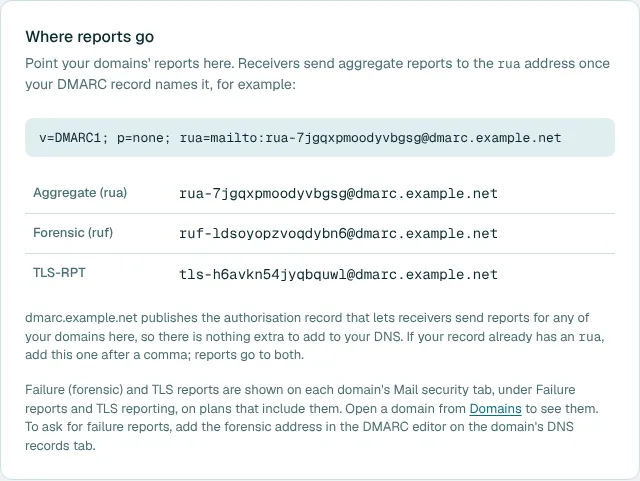
Your clients’ report addresses and hosted records use
a domain of yours, such as dmarc.example.net, once it’s set up with us. It’s a
domain you own, delegated to us; ask us to set one up. The card then says
Reports and hosted records use your domain.
Until then, report addresses and hosted records use a neutral domain,
dmarcfeedback.com:
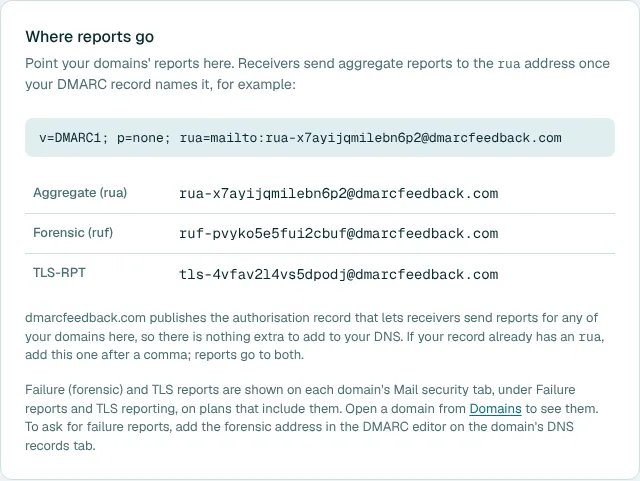
Addresses already in use keep working when your domain is set up; new ones use yours.
What your clients see
| Where | What |
|---|---|
| The app | Your name, logo and colours, at your portal address or your own hostname |
| Sign-in page | Your brand at your portal address or hostname; a neutral page at app.dmarcfeedback.com |
| Your name and logo, from your sending domain once it’s verified | |
| PDF reports | Your name, logo and accent |
| DNS records they publish | Your report domain once it’s set up; dmarcfeedback.com until then |
Next
Stuck? Reply to any email DMARCLoop sends, or contact us - a person reads it.